Monday, 19 April 2021

Lookup for External Items on Sales Line in D365 F&SCM X++

 Recently I have a requirement where I have to create a custom lookup for those external items on sales line which are linked to the customer on the sales order.

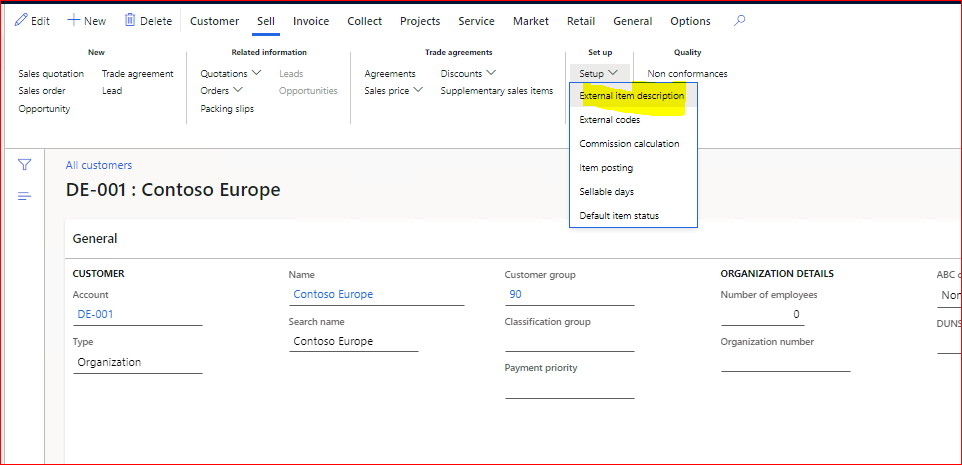
  • External Item Id linked with Customer:


  • Create a view for adding the Product Dimensions as below:


  • For Lookup of External Item Id
    • Add a custom field on the saleslines and copy it's onlookup event handler from form.
    • Create a new class and paste the copied event handler in the class, it will create a new method.
    • Use the below code lookUp:

[FormControlEventHandler(formControlStr(SalesTable, SalesLine_ExtItemId), FormControlEventType::Lookup)]
    public static void SalesLine_ExtItemId_OnLookup(FormControl sender, FormControlEventArgs e)
    {
        Query                                 query = new Query();
        QueryBuildDataSource      queryBuildDataSource, qbds;
        SysTableLookup                sysTableLookup;
        SalesLine                           salesLine = sender.dataSourceObject().cursor();

        // CustVendExtItemView is a custom view showed above.
        sysTableLookup = SysTableLookup::newParameters(tableNum(CustVendExtItemView), sender);
        queryBuildDataSource = query.addDataSource(tableNum(CustVendExtItemView));

        queryBuildDataSource.addRange(fieldNum(CustVendExtItemView, CustVendRelation)).value(salesLine.CustAccount);
        
        sysTableLookup.addLookupField(fieldNum(CustVendExtItemView, ExternalItemId), true);
        sysTableLookup.addLookupField(fieldNum(CustVendExtItemView, Description));
        sysTableLookup.addLookupField(fieldNum(CustVendExtItemView, ItemId));
        sysTableLookup.addLookupField(fieldNum(CustVendExtItemView, ExternalItemTxt));
        sysTableLookup.addLookupField(fieldNum(CustVendExtItemView, CustVendRelation));
        sysTableLookup.addLookupField(fieldNum(CustVendExtItemView, InventColorId));
        sysTableLookup.addLookupField(fieldNum(CustVendExtItemView, InventSizeId));
        sysTableLookup.addLookupField(fieldNum(CustVendExtItemView, InventStyleId));
        sysTableLookup.addLookupField(fieldNum(CustVendExtItemView, InventVersionId));

        sysTableLookup.parmQuery(query);
        sysTableLookup.performFormLookup();
    }
    • Now create a table to hold the Product Dimension value as below:


    • Copy the Modified event handler of ExternalItemId from Form DS and use the below code:
    /// <summary>
        ///
        /// </summary>
        /// <param name="sender"></param>
        /// <param name="e"></param>
        [FormDataFieldEventHandler(formDataFieldStr(SalesTable, SalesLine, ExtItemId), FormDataFieldEventType::Modified)]
        public static void ExtItemId_OnModified(FormDataObject sender, FormDataFieldEventArgs e)
        {
            //Custom View
            CustVendExtItemView           externalItem;
            FormDataSource                    salesLine_ds  = sender.datasource();
            SalesLine                                salesLine     = salesLine_ds.cursor();
            ExtItemId                                isbnItemId;

            //Custom Table
            CustVendExtItemTempTable  custVendExtTempTable;
            
            ttsbegin;
            delete_from  custVendExtTempTable;
            ttscommit;

            select firstonly externalItem
                where externalItem.ExternalItemId == salesLine.ExtItemId;

            if (externalItem.RecId)
            {
                ttsbegin;
                custVendExtTempTable.clear();
                custVendExtTempTable.ItemId             = externalItem.ItemId;
                custVendExtTempTable.ExternalItemId     = externalItem.ExternalItemId;
                custVendExtTempTable.ExternalItemTxt    = externalItem.ExternalItemTxt;
                custVendExtTempTable.CustVendRelation   = externalItem.CustVendRelation;
                custVendExtTempTable.Description        = externalItem.Description;
                custVendExtTempTable.InventColorId      = externalItem.InventColorId;
                custVendExtTempTable.InventSizeId       = externalItem.InventSizeId;
                custVendExtTempTable.InventStyleId      = externalItem.InventStyleId;

                custVendExtTempTable.insert();
                ttscommit;
            } 

            salesLine.ItemId    = externalItem.ItemId;     
            isbnItemId          = salesLine.ExtItemId;

            salesLine_ds.object(fieldnum(SalesLine, ItemId)).modified();

            salesLine.ExtItemId =  isbnItemId;
        }

    • Now Create a COC for SalesLineType.initFromInventTable for populating the Product Dimensions on the External Item Id:
    void initFromInventTable(InventTable _inventTable, boolean _resetPrice, AgreementHeaderRecId _matchingAgreement, boolean _executeOnlyIfProductIsFullySpecified)
        {
            next initFromInventTable(_inventTable, _resetPrice, _matchingAgreement, _executeOnlyIfProductIsFullySpecified);
            
            InventDim inventDim = salesLine.inventdim();
            
            //Custom Table
            CustVendExtItemTempTable custVendExtTempTable;

            select firstonly custVendExtTempTable;
            
            // Populate Item Number and update InventDim with Product Attribute when user selects External Item Number.
            if (custVendExtTempTable.RecId)
            {
                if (custVendExtTempTable.InventColorId)
                {
                    inventDim.InventColorId   = custVendExtTempTable.InventColorId;
                }
                if (custVendExtTempTable.InventSizeId)
                {
                    inventDim.InventSizeId = custVendExtTempTable.InventSizeId;
                }
                if (custVendExtTempTable.InventStyleId)
                {
                    inventDim.InventStyleId = custVendExtTempTable.InventStyleId;
                }
                if (custVendExtTempTable.InventVersionId)
                {
                    inventDim.InventVersionId = custVendExtTempTable.InventVersionId;
                }
            
                salesLine.InventDimId = InventDim::findOrCreate(inventDim).inventDimId;
            
                ttsbegin;
                delete_from custVendExtTempTable;
                ttscommit;
            }
            // Populate External Item Number and update InventDim with Product Attribute when user selects ItemId.
            else if (salesLine.ItemId)
            {
                CustVendExternalItem custVendExternalItem;

                select firstonly custVendExternalItem
                    where custVendExternalItem.CustVendRelation == salesLine.CustAccount
                        && custVendExternalItem.ModuleType      == ModuleInventPurchSalesVendCustGroup::Cust
                        && custVendExternalItem.ItemId          == salesLine.ItemId;

                if (custVendExternalItem.RecId)
                {
                    salesLine.ExtItemId = custVendExternalItem.ExternalItemId;

                    // Custom View
                    CustVendExtItemView externalItem;
                    
                    select firstonly externalItem
                        where externalItem.ExternalItemId == salesLine.ExtItemId;

                    if (externalItem.InventColorId)
                    {
                        inventDim.InventColorId   = externalItem.InventColorId;
                    }
                    if (externalItem.InventSizeId)
                    {
                        inventDim.InventSizeId = externalItem.InventSizeId;
                    }
                    if (externalItem.InventStyleId)
                    {
                        inventDim.InventStyleId = externalItem.InventStyleId;
                    }
                    if (externalItem.InventVersionId)
                    {
                        inventDim.InventVersionId = externalItem.InventVersionId;
                    }
            
                    salesLine.InventDimId = InventDim::findOrCreate(inventDim).inventDimId;
                }

            }
        }
    • This is how it final development will look like:
            External Items on the customer:


    LookUp on Sales Line:


    Item and its Product Dimension on Sales Line:


    Friday, 26 March 2021

    Create Default Dimension using cost centre and it's Derived Dimensions in D365 FSCM X++

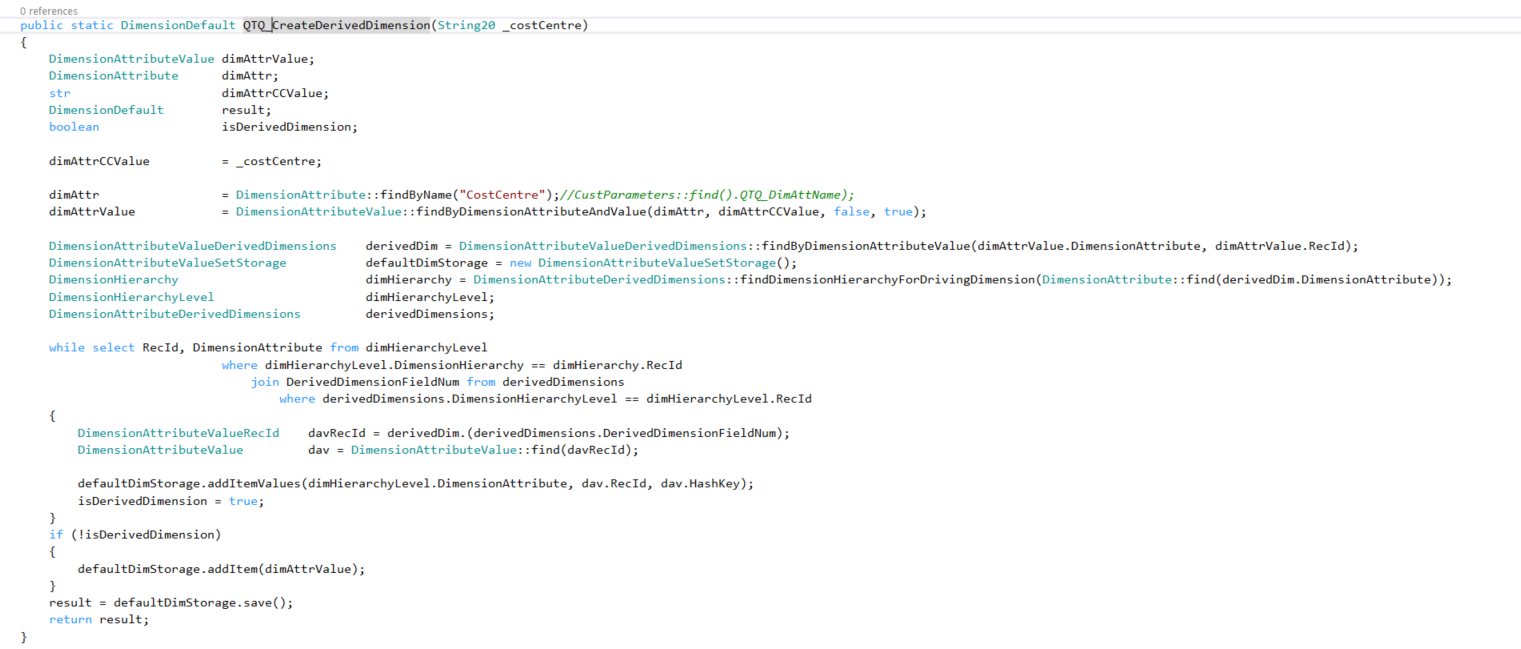
     Pass the CostCentre value in the parameter to create the default dimension and fill up other dimension values from cost centre's derived dimensions:


    Below is the code, pass the cost Centre value as a parameter.

    public static DimensionDefault QTQ_CreateDerivedDimension(String20 _costCentre)
        {
            DimensionAttributeValue dimAttrValue;
            DimensionAttribute      dimAttr;
            str                     dimAttrCCValue;
            DimensionDefault        result;
            boolean                 isDerivedDimension;
                                
            dimAttrCCValue          = _costCentre;
            
            dimAttr                 = DimensionAttribute::findByName("CostCentre");//CustParameters::find().QTQ_DimAttName);
            dimAttrValue            = DimensionAttributeValue::findByDimensionAttributeAndValue(dimAttr, dimAttrCCValue, false, true);
                            
            DimensionAttributeValueDerivedDimensions    derivedDim = DimensionAttributeValueDerivedDimensions::findByDimensionAttributeValue(dimAttrValue.DimensionAttribute, dimAttrValue.RecId);
            DimensionAttributeValueSetStorage           defaultDimStorage = new DimensionAttributeValueSetStorage();
            DimensionHierarchy                          dimHierarchy = DimensionAttributeDerivedDimensions::findDimensionHierarchyForDrivingDimension(DimensionAttribute::find(derivedDim.DimensionAttribute));
            DimensionHierarchyLevel                     dimHierarchyLevel;
            DimensionAttributeDerivedDimensions         derivedDimensions;

            while select RecId, DimensionAttribute from dimHierarchyLevel
                                    where dimHierarchyLevel.DimensionHierarchy == dimHierarchy.RecId
                                        join DerivedDimensionFieldNum from derivedDimensions
                                            where derivedDimensions.DimensionHierarchyLevel == dimHierarchyLevel.RecId
            {
                DimensionAttributeValueRecId    davRecId = derivedDim.(derivedDimensions.DerivedDimensionFieldNum);
                DimensionAttributeValue         dav = DimensionAttributeValue::find(davRecId);

                defaultDimStorage.addItemValues(dimHierarchyLevel.DimensionAttribute, dav.RecId, dav.HashKey);
                isDerivedDimension = true;
            }

            // If there is no derived dimension available then at-least create the default dimension with Cost Centre Value only.
            if (!isDerivedDimension)
            {
                defaultDimStorage.addItem(dimAttrValue);
            }
            result = defaultDimStorage.save();
            return result; 
        }


    Monday, 1 February 2021

    Add new Label File in D365 F&SCM

    •  Create a new project, right click on project and add new label file as shown below
    • Click on Add button in above image, next screen will appear as below
    • Select all languages (as shown in above image) in which you want to generate your label files, for eg I want my label files for en-US & en-GB.
    • Click on Next and then click on Finish as in below image and you will get your Label files 


    Sunday, 3 January 2021

    Validate the combination of Main Account (Ledger Dimension) with Financial Dimensions (Default Dimension)

     Hi All,

    Recently I came up with a requirement to validate the combination of Main Account and Default Dimensions in D365 F&&SCM, so sharing the piece of code, hope it help someone.


    public static boolean validateAccountStructureAndDefaultDim(

                                DimensionDefault        _defaultDimensions, 

                            LedgerDimensionBudget   _ledgerDimension,

                                TransDate               _transactionDate)

        {

            DimensionValidationStatus   dimensionValidationStatus = DimensionValidationStatus::Valid;

            boolean                     ret;


            LedgerDimensionAccount ledgerDimensionAccount = DimensionDerivationDistributionRule::buildLedgerDimension(_ledgerDimension, _defaultDimensions);

            dimensionValidationStatus = LedgerDimensionValidationHelper::validateByTree(ledgerDimensionAccount, _transactionDate, true, true);


            if (dimensionValidationStatus == DimensionValidationStatus::Valid)

            {

                ret = true;

            }

            return ret;

        }


    This piece of code can be used as below:


    //Select all the lines for validation

    while select LedgerDimension, DefaultDimension, LineNum from custInvoiceLine

                where custInvoiceLine.ParentRecId == _custInvoiceTable.RecId

            {

                if (!custInvoiceLine.DefaultDimension) // Validation to check if atleast 1 financial dimension value is specified. 

                {

                    canSubmitToWorkflow = checkFailed("Atleast 1 Financial Dimension value must be specified.");

                }


                if (canSubmitToWorkflow)

                {

    // Call to our method

                    canSubmitToWorkflow = QTQ_CustFreeInvoiceWorkflow::validateAccountStructureAndDefaultDim(custInvoiceLine.DefaultDimension, custInvoiceLine.LedgerDimension, today());

                }

            }

    Wednesday, 19 August 2020

    How to debug Azure Function Apps locally with Postman

     Hello All,


    Let's see how to debug the azure function app locally with the help of postman.

    I have created a new function app which reads value from my Azure BYOD sql database table.

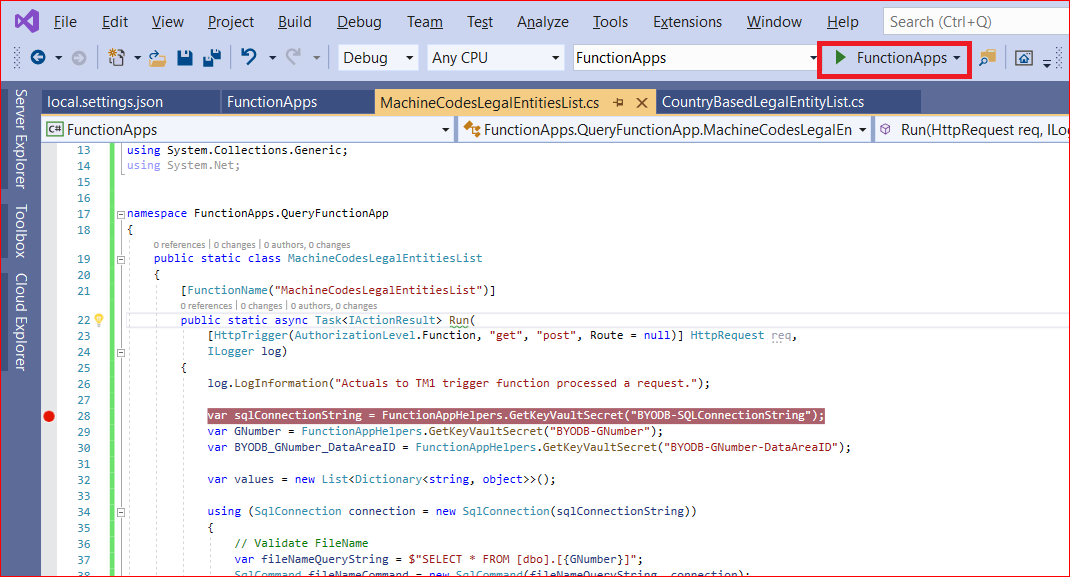
    Now Click on the FunctionApps button on the top as in below screen shot:


    After clicking on the FunctionApps button, it will give a command window with all the functionApp names with their HTTP request link which we have to copy as shown in the below screen shot, copy the link which is marked in red.


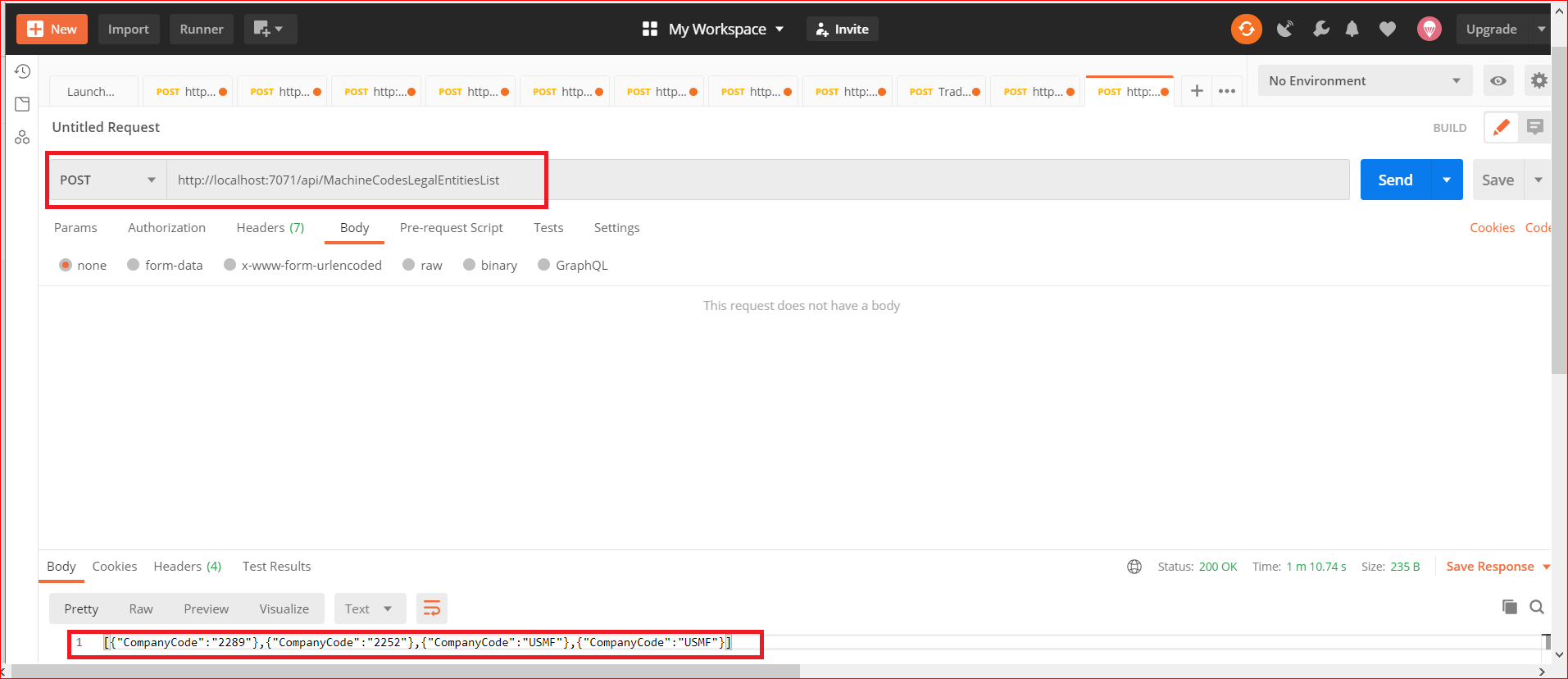
    Now open the postman and paste the link which we have copied and create a new post request, and check the result.

    If your FunctionApp requires a body then provide it.


    Like this we can do the test for our FunctionApp locally with Postman.


    Saturday, 11 July 2020

    Create and post pending vendor invoices without purchase order in D365 FO using x++

    If you don't have purchase order details but still needs to create and post pending vendor invoice then the below code may help.


    class RunnableClass1
    {
        
        /// <summary>
        /// Runs the class with the specified arguments.
        /// </summary>
        /// <param name = "_args">The specified arguments.</param>
        public static void main(Args _args)
        {
            VendInvoiceInfoTable            vendInvoiceInfoTable;
            VendInvoiceInfoSubTable     vendInvoiceInfoSubTable;
            VendInvoiceInfoLine             vendInvoiceInfoLine;
            VendInvoiceInfoSubLine      vendInvoiceInfoSubLine;
            PurchParmUpdate                 purchParmUpdate;

            PurchFormletterParmData     purchFormletterParmData = PurchFormletterParmData::newData(DocumentStatus::Invoice, VersioningUpdateType::Initial);
            PurchFormLetter         purchFormLetter;
            
            purchFormletterParmData.init();
            purchFormletterParmData.parmOnlyCreateParmUpdate(true);
            purchFormletterParmData.createData(false);
            purchParmUpdate = purchFormletterParmData.parmParmUpdate();

            ttsbegin;
            vendInvoiceInfoTable.clear();
            vendInvoiceInfoTable.initValue();

            vendInvoiceInfoTable.DocumentOrigin  = DocumentOrigin::Manual;
            vendInvoiceInfoTable.DeliveryName = '';
            //vendInvoiceInfoTable.Num = "INV015"; //add invoice number in here
            vendInvoiceInfoTable.InvoiceAccount = '1001';
           
            vendInvoiceInfoTable.defaultRow(null, null, true);
            vendInvoiceInfoTable.Num = "INV031";
            vendInvoiceInfoTable.VendInvoiceSaveStatus = VendInvoiceSaveStatus::Pending;
            vendInvoiceInfoTable.DocumentDate = systemDateGet();
            vendInvoiceInfoTable.LastMatchVariance = LastMatchVarianceOptions::OK;
            vendInvoiceInfoTable.CashDiscDate  = systemDateGet() + 10; 

            vendInvoiceInfoTable.insert();
            
            if(vendInvoiceInfoTable)
            {
                vendInvoiceInfoSubTable.clear();
                vendInvoiceInfoSubTable.initValue();
                vendInvoiceInfoSubTable.defaultRow();
     
                vendInvoiceInfoSubTable.ParmId = vendInvoiceInfoTable.ParmId;
                vendInvoiceInfoSubTable.OrigPurchId = vendInvoiceInfoTable.PurchId;
                vendInvoiceInfoSubTable.PurchName = vendInvoiceInfoTable.PurchName;
                vendInvoiceInfoSubTable.TableRefId = vendInvoiceInfoTable.TableRefId;
     
                vendInvoiceInfoSubTable.insert();
            }

            vendInvoiceInfoLine.clear();
            vendInvoiceInfoLine.initValue();
     
            vendInvoiceInfoLine.DeliveryName = vendInvoiceInfoTable.DeliveryName;
            vendInvoiceInfoLine.TableRefId = vendInvoiceInfoTable.TableRefId;
            vendInvoiceInfoLine.currencyCode = vendInvoiceInfoTable.CurrencyCode;
            vendInvoiceInfoLine.LineNum = 1;
            
            InventTable inventTable = InventTable::find("C0001");


            vendInvoiceInfoLine.InvoiceAccount = vendInvoiceInfoTable.InvoiceAccount;
            vendInvoiceInfoLine.OrderAccount  = vendInvoiceInfoTable.OrderAccount;
            vendInvoiceInfoLine.ItemId = inventTable.ItemId;
            vendInvoiceInfoLine.modifiedField(fieldNum(VendInvoiceInfoLine, ItemId));
     
            vendInvoiceInfoLine.DocumentOrigin = DocumentOrigin::Manual;
     
            vendInvoiceInfoLine.ReceiveNow = 1.2;
            vendInvoiceInfoLine.RemainBefore = 1.2;
            vendInvoiceInfoLine.RemainBeforeInvent = 1.2;
     
            vendInvoiceInfoLine.PurchPrice = 5.5;
            vendInvoiceInfoLine.InventNow = 1.2;
            vendInvoiceInfoLine.LineAmount = 6.6;
     
     
            vendInvoiceInfoLine.insert();
            ttscommit;

            vendInvoiceInfoTable vendInvoiceInfoTableLoc;

            select vendInvoiceInfoTableLoc where vendInvoiceInfoTableLoc.Num == vendInvoiceInfoTable.Num;

            purchFormLetter = PurchFormLetter_Invoice::newFromSavedInvoice(vendInvoiceInfoTableLoc);
            purchFormLetter.update(vendInvoiceInfoTableLoc.purchTable(), vendInvoiceInfoTableLoc.Num);
        }

    }

    Monday, 18 May 2020

    Connect Odata Entities in Azure Logic App in D365FO

    Hi Every one,

    I have prepared a small example of how to connect the Odata Entities to LogicApps.


    • Complete the details in new Logic App, provide the Resource group name which you have created and provide the LogicApp name and select the location.


    • Click on Review + create button

    • Now click on create button and it will deploy the App
    • Now click in Go to resource button which will open the Logic App Designer page where will create a new blank App from scratch.

    • Let's create the App
    • This is how the App will look after completion:

    • As you can see, I have added a Recurrence to run our app with certain interval of time and also I have added few variables where I have declared some of the values, so that I can reuse the values and don't have to copy paste every time.
    • In the above image
      • varD365baseURL: Provide your D365FO environment url.
      • varClientId: Provide the Client Id that was generated while registering your VM in Azure Portal.
      • varTenantId: Provide the Tenant Id that was generated while registering your VM in Azure Portal.
      • varSecretKey: Provide the Secret Id that was generated while registering your VM in Azure Portal. 
    • Now after the variable declarations, add the HTTP action
    • In the above image:
      • URL format: https://login.microsoftonline.com/"TenantId"/oauth2/token
      • Body format:clientid="Client Id"&grant_type=client_credentials&client_secret="SecretKey"&resource="D365FO VM URL"
      • Note: Don't give any space in the body parameters
    • Once this is completed we have to parse the JSON which will be generated by this step.
    • To do it, I have used PostMan App and fed up the above details as it is to generate the JSON format.

    • As you can see in the above image I have declared some global variables in PostMan for re-usability.
    • After creating the global variables for "Tenant Id, Client Id, Grant_Type, and resource" which are the values we provide in the "HTTP Action" in Logic App, select the Post function in PostMan as shown below and goto Params tab and give the Tenant Id as shown below:

    • Now goto Body tab and provide the rest values as shown below:
    NOTE: These values are declared as global variables in PostMan app as shown above.

    • Now click on Send button to generate the Bearer Token, which is required for next step:
    • Copy the access token value and save it also as global variable with name "Bearer_token".

    • Now copy the response from the Post action of  the Postman and goto Logic App and add a new step with action Parse JSON:
    • Copy the response from Postman as shown below.
    • Goto Logic app and add ParseJson Action, click on "Use sample payload to generate schema" and paste the copied Response from Postman.

    • Once the schema is added, add a new HTTP Action and add the OData entity URL for CustomerV3 entity to read the customer:
    • Here in the above picture, I have applied filter to read a particular customer only.
    • Odata entity URL: "Youy D365FO environment URL"/data/CustomersV3 (Odata entity public name)/?$filter=CustomerAccount eq'US-019'
    • In plain english, without encoding: https://D365 URL/data/CustomersV3?$filter=CustomerAccount eq 'US-019'
    • Now we have to again parse the JSON for HTTP2 Action in postman, so create a new GET request in postman and enter the ODATA Entity URL for Customer Entity, now goto Headers tab and add a new key with name Authorization and in value, provide the Bearer Token value for which we  have created the Global variable in previous step, now click on send button and copy the response and goto Logic App.

    • Now add the new action "Parse JSON" again for HTTP2 action, and paste the Response which we have generated in previous step in Postman

    • After this add another Action for sending the email, where provide your email Id:
    • Logic App is completed, run it to see the results.
    That's all for now...

    Monday, 30 March 2020

    Cancel Sales lines delivery Remainder in D365 F&O


     public static boolean cancelSalesLineDeliveryRemainder(SalesId _salesId, SalesExternalItemId _revnId)
        {
            SalesLine   salesLine;
            boolean     ret;
           
            ttsBegin;
             // You can use your query to find sales line.
            select salesLine
                // index salesLineIdx
                where salesLine.SalesId         == _salesId
                    && salesLine.ExternalItemId == _revnId 
                    && salesLine.SalesQty       == 1
                    && salesLine.SalesStatus    == SalesStatus::Delivered;

            if (salesLine)
            {
                //Note don't use SalesUpdateRemain::updateDeliveryRemainder(salesLine, 0, 0) as this method is deprecated in D365 FSCM
                ret = SalesUpdateRemain::construct().updateDeliverRemainder(salesLine, 0, 0, 0);
            }
            ttsCommit;
           
            return ret;
        }

    Cancel DeliveryNote (or Packing Slip) in D365 F&O


    public void cancelDeliveryNote(SalesId _salesId)
        {
            CustPackingSlipJour  custPackingSlipJour;
            boolean                       isCancelEnabled;
            boolean                       isCorrectionEnabled;
           
            select firstonly custPackingSlipJour
                order by PackingSlipId desc
                    // PackingSlipIdx
                    where custPackingSlipJour.SalesId == _salesId;

            [isCancelEnabled, isCorrectionEnabled] = CustPackingSlipJourFormHelper::areCancelCorrectButtonsEnabled(custPackingSlipJour);

            if (isCancelEnabled == true)
            {
                Args args = new Args();
                args.record(custPackingSlipJour);
                new MenuFunction(menuitemActionStr(SalesFormLetter_PackingSlipCancel), MenuItemType::Action).run(args);
            }
        }

    Tuesday, 24 March 2020

    Create display value for default dimension. in D365 FO

    public static void main(Args _args)
        {
            str                        dimMainAcc, dimCostCenter, dimDivision, dimLocation;
            CustTable            custTable = CustTable::find("SL0008"); // Add the CustAccount value.

            DimensionAttributeValueSetStorage   davss = DimensionAttributeValueSetStorage::find(custTable.DefaultDimension);
            int                                 i;

            for (i= 1; i <= davss.elements(); i++)
            {
                 //You can add/update dimension values as per the dimension structure in the system.
                if (DimensionAttribute::find(davss.getAttributeByIndex(i)).Name == "MainAccount")
                {
                    dimMainAcc = davss.getDisplayValueByIndex(i);
                }
                if (DimensionAttribute::find(davss.getAttributeByIndex(i)).Name == "CostCenter")
                {
                    dimCostCenter = davss.getDisplayValueByIndex(i);
                }
                if (DimensionAttribute::find(davss.getAttributeByIndex(i)).Name == "Division")
                {
                    dimDivision = davss.getDisplayValueByIndex(i);
                }
                if (DimensionAttribute::find(davss.getAttributeByIndex(i)).Name == "Location")
                {
                    dimLocation = davss.getDisplayValueByIndex(i);
                }
            }

            str dimStorageValue = "-" + dimMainAcc + "-" + dimCostCenter + "-" + dimDivision + "-" + dimLocation;

            Info(dimStorageValue);
        }

    Wednesday, 20 November 2019

    Fetch different data source value in a Display method in D365 FO

    Hi All,
    Some time we have to fetch more than 1 data source value of a form in a display method in D365 FO, but the problem is we can pass only 1 data source buffer in the display method, so to overcome this have a look to the below code, in the example I am fetching the InventDim table buffer from the inventDim dataSource of the form.


    [ExtensionOf(tableStr(InventDimCombination))]
    final public class InventDimCombinationTbl_Extension
    {
        public static display InventQtyAvailPhysical displayAvailSupplyQty(InventDimCombination _this)
        {
            InventDim            inventDimFind;
            InventSum            inventSumLocal;
            InventDimParm   inventDimParmLocal;
           
            FormDataSource  inventDimCombination_ds = _this.datasource();
            FormDataSource  inventDim_ds   = inventDimCombination_ds.formRun().dataSource("InventDim");
            InventDim    inventDim  = inventDim_ds.cursor();
           
            inventDimFind.initFromInventDim(inventDim);
            EcoResProductDimGroupSetup::copyProductDimensionsForItem(_this.ItemId, _this.inventDim(), inventDimFind);

            inventDimParmLocal.ItemIdFlag             = NoYes::Yes;
            inventDimParmLocal.InventStatusFlag  = NoYes::Yes;
            inventDimParmLocal.setActiveSiteAndWarehouseDimensions();

            inventDimParmLocal.setActiveProductDim(EcoResProductDimGroupSetup::newItemId(_this.ItemId));

            inventSumLocal = InventSum::findSumQty(_this.ItemId, inventDimFind, inventDimParmLocal);

            return inventSumLocal.AvailPhysical;

        }
     }

    In this way we can find any datasource value which is linked to a form in a display method


    Insert/Update or remove the default dimension value in D365 FSCM via x++

    Use below method to insert/update the dimension values, just pass the parameter values to the method and it will return the updated value: p...